Flying the Synaptic + iniBuilds A220
An American Virtual Pilot’s Quick Briefing
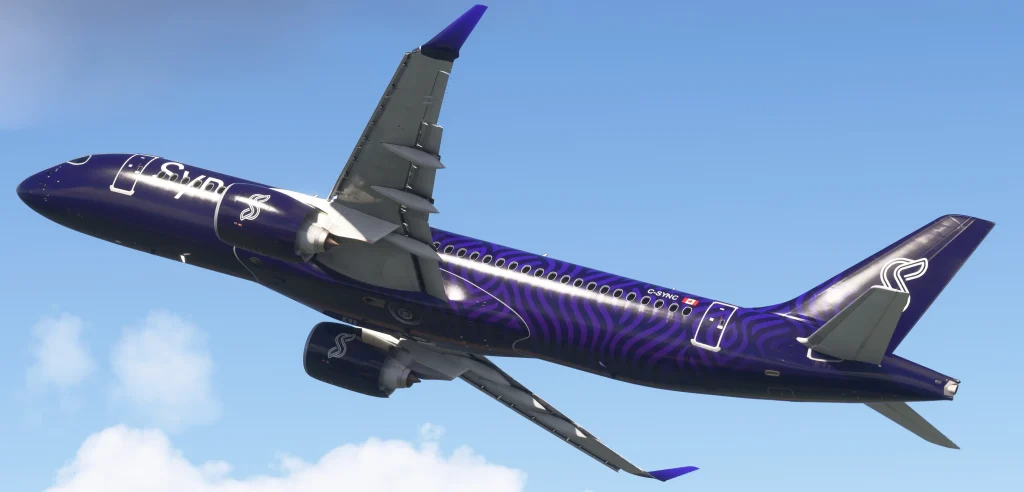
The Synaptic Simulations / iniBuilds A220-300 is finally launching next week on the MSFS Marketplace! We want to share key points on A220 operations ahead of launch so the roll-out goes smoothly and safely for new and experienced Wy’East pilots.
Credit: these tips and several images are pulled from a detailed A220 guide, along with guides from Synaptic and iniBuilds via their Welcome To the Synaptic A220, A320Driver review video Synaptic Airbus A220 Preview, and their Aircraft Manual.
Additional resources, including the baseline SimBrief profile, throttle calibration guides, etc., are available on the iniBuilds website. We strongly recommend reading the very complete guide created by A220 Pilot, which you can find here:
Airbus-A220-Pilot-Guide.pdf
Bombardier Philosophy Under Airbus Brand

- The A220 started life as the Bombardier C-Series before Airbus bought in and renamed it (due to cost overruns on the C-Series program)
- Bombardier’s design philosophy comes from the Challenger business jets and the CRJ regional line. If you’ve got CRJ or HotStart Challenger time, some of that will feel familiar here.
Unique Fly By Wire

- A320 normal law is load-factor based and holds attitude on its own. In contrast, the A220 has inherent speed stability instead: trim it, let go of the stick, and it settles back to trim speed like a Boeing.
- Release the sidestick with bank angle under 30° and the bank angle holds. Max bank is 80°, further limited by pitch and IAS.
- A speed trim bug (blue carrot) on the tape shows what you’re trimmed for. Adjust it with a rocker switch on the stick, not a wheel. The FBW system will naturally tune the pitch to settle at that speed. Typically this is not adjusted more than 2-5 kts at a time.
- Autothrust moves the thrust levers, unlike a legacy Airbus. Treat them like 737 throttles.
- Advancing both thrust levers for takeoff auto-deflects the elevators 12° down at neutral stick until 80 kts, to help nosewheel steering. Please don’t push forward yourself; it will fight the system.
- The TOGA button gets used on the ground constantly, not just for takeoff or a go-around. It’s how you arm the lateral and vertical flight guidance modes as part of the pre-flight flow. There is a screw click spot on the glareshield left of the control tuning panel (CTP)
FMS Setup Flow

Video tutorial from Synaptic here!
- DBASE – check aircraft/engine variant and nav database validity.
- POS – cycle each tab, check FMS position, RAIM availability.
- FPLN
- INIT: open SEC FPLN, select FPLN UPLINK to get the flight plan via ACARS. Enter departure and arrival plus any missing data, ACTIVATE SEC, enter FLT NO last.
- WIND/TEMP: upload via FPLN WIND REQ or enter manually. If no FPLN UPLINK, enter the route first, then wind.
- FUEL: enter preliminary ZFW, CG, PAX, FOB, and TAXI fuel.
- If you are not getting a vertical profile after you load a flight plan and departure, make sure you have done this.
- ZFW and CG can be found in the payload portion of the EFB
- PERF
- DEP: enter thrust, flaps, bleed source, anti-icing, NADP, and speeds last. Set V-speeds, then press TOGA + NAV + VNAV and set runway heading. If you used the EFB Takeoff Performance calculator’s SEND TO FMS button instead of entering manually, you still have to press SET VSPEEDS on this page to confirm them; sending the numbers over doesn’t set them on its own.
- CLB: climb speed profile and limits.
- CRZ: cruise speed profile.
- DES: descent speed profile and limits.
- ROUTE
- VIA/TO: enter the route, or check if it uplinked. Enter the waypoint (TO) first, then the airway (VIA).
- LEGS: use the FIX page to enter reference fixes as needed (e.g. an OEI departure route).
Faster FMS Entry

- Bind a key to toggle keyboard input on and off for FMS and MFD data entry. It’s under Entry Mode Keybind in EFB Settings on the EFB.
- You need to ENABLE entry mode to use this
- Saves you from looking down at the scratchpad every time. When keyboard entry mode is active, you’ll see a small ring around the cursor.
- Of note: entry mode locks out all your other keybinds while it’s active, and it auto-times-out after a few seconds so it can’t get left on by accident.
Basic VNAV
- The only VNAV-based descent mode is Vertical Path Angle (VPA). No deceleration segments, no weight/wind/temp compensation, and it won’t recompute once established unless a constraint gets changed.
- The aircraft doesn’t care what its actual performance will be. Set a FPA, and it flies that angle to whatever restriction is next, regardless of speed restrictions.
- This is a very slick aircraft. At idle thrust with too steep an FPA, you will overspeed unless you use speed brakes.
- Make sure you are managing speed/energy at all times; this is not like an A320 or 737 where you can set it and forget it on the descent.
- You calculate the FPA yourself and enter it on FMS – PERF – DES.

- Base: 3.0° at 55t.
- Weight: +0.2° per 5t under 55t, -0.1° per 5t over.
- Aircraft Gross Weight (GWT) can be found on the FMS, FPLN-FUEL page, or the PERF-ARR page by selecting the departure airport (shown as Landing Weight – LW).
- Use this GWT to plug into the landing performance calculator in the EFB
- Aircraft Gross Weight (GWT) can be found on the FMS, FPLN-FUEL page, or the PERF-ARR page by selecting the departure airport (shown as Landing Weight – LW).
- ISA deviation: +0.1° per 10°C below ISA, -0.1° per 10°C above.
- Wind: +0.1° per 10kt headwind, -0.1° per 10kt tailwind.
- Anti-ice: -0.2° if anticipating anti-ice use.
- Example: FL350 to sea level, 55t, ISA -10°C, 10kt tailwind → 3.0° + 0.1° – 0.1° = 3.0°.
- Weight: +0.2° per 5t under 55t, -0.1° per 5t over.
Geared Turbofan Starts
- The PW1500G is a geared turbofan, and it motors for a while before light-off. This is to evenly cool the engine rotor and core to prevent warping.
- Average start time runs about 1:40 to 1:45 per engine, so don’t be shocked if the take some time. Budget 4-5 minutes to push and be ready to taxi, particularly if you are flying on VATSIM.
- In very hot or cold temperatures, or if the engines have not cooled enough, the motoring can take up to 120 seconds before any light comes off. If this occurs, an EICAS “ENG START DELAY” will appear.
- Unclear if this is modeled, was not present in the intro video: to prevent trim air system faults, select TRIM AIR OFF before engine start, then back to AUTO once both engines have stabilized.
Cold Weather
- Cold, thick oil doesn’t lubricate the gearbox and bearings well at high power. That’s why thrust is capped until oil temp climbs into range.
- Below -6°C: idle only. -6°C to +21°C: max 30% N1. 21°C to 49°C: max 50% N1. Above 49°C: no limit.
- Icing conditions: +10°C TAT to -40°C SAT in visible moisture. That’s when wing and cowl anti-ice go AUTO or ON, depending on phase of flight.
- At 3°C OAT or below with visible moisture, cycle the engines to 60% N1 every 30 minutes to shed ice, with a final cycle inside 5 minutes of takeoff.
Hot Weather & High Altitude
- Heat costs real performance. Higher OAT means longer takeoff distance and reduced climb performance.
- Density altitude compounds it. A sea-level departure and a mountain west departure at the same weight and OAT are not the same takeoff roll. Denver’s field elevation alone (5431 ft) adds real distance and cuts climb margin compared to a sea-level hub like Portland or Philly. Expect higher V-speeds, more runway used, and less thrust from the same N1 setting.
- Check the load sheet numbers; don’t assume a normal-feeling runway behaves normally at altitude or in the heat.
- On APU-only air: packs auto, recirc and trim air auto, cargo vents open, equipment cooling auto, windshield and window heat off, outlets and gaspers open.
Landing Configuration
- Typically lands in Flap 4. Flap 5 is for shorter runways.
- Reverse thrust is limited to idle by FADEC below 55 KIAS.
Approach Mode Caveat
- In APPR mode, the auto-flight system uses only localizer and glideslope deviation, no inertial data (wind, drift, groundspeed). Initial capture can be inaccurate, especially in a crosswind, and can cause unexpected lateral guidance or overshoot, particularly on parallel approaches.
- This effect has been well demonstrated on some pre-release live streams, and it is not a bug in the ILS system.
- Use NAV mode for the initial intercept (FMS 1/2). Delay APPR selection until localizer deviation is within 1 dot.
- On radar vectors (HDG mode), select NAV mode when cleared for the approach, then delay APPR the same way, within 1 dot.
- Below 2000 ft AGL, the PFCCs take over approach guidance and tracking improves noticeably.
Navigation Data Updates
- Navigation data is NOT updated via the Navigraph app like you would for the PMDG, Fenix, or Aerosoft line of aircraft. It is done via the in-aircraft FMS itself.
Updating your Navigraph cycle, per the iniBuilds FAQ:
- Press MENU on the MKP.
- Select DATA > DATALOAD from the dropdown list.
- Select LOAD NEW DATABASES at the top.
- Authenticate Navigraph if not done already (scan or click Open Browser to approve; the window closes automatically once connected; refresh the code from any other FMS page if it expires).
- Tick the latest database file (e.g. Navigraph_v2_2607_09JUL26).
- Select START LOAD to begin the uplink. You’ll see a progress bar, then a green “Load Complete” message when it’s done.
Switching your active navigation data source (i.e., Native Asobo vs Navigraph) is a separate step. Native and Navigraph are both available as the FMS’s navdata source, and changing between them is done from the same DATALOAD menu, under RELOAD DATA & SOFTWARE instead of LOAD NEW DATABASES. Choose NATIVE or NAVIGRAPH and hit START LOAD. Changing sources wipes all FMS data, so don’t do it airborne, and don’t do it if you’ve already built a flight plan.
We’re excited to bring an aircraft this unique into the Wy’East fleet. Dig into the systems past what’s here; there’s a lot more to this jet than one briefing covers. We highly recommend a full review of A220Driver’s guide, the Synaptic + iniBuilds documentation, and developer preview and training videos.

HubOps 2025 Final Quarterfinal Round

Featured Destinations June 1st 2024

New Staff Member & Many Updates
About The Author
